Block the feed, keep the app
How to Stop Scrolling TikTok (and Keep the People You Follow)
TikTok is built so the next video is always one swipe away, and its own screen time limit is a passcode you set yourself. To stop scrolling TikTok, block the For You feed so the app opens on people you follow, add friction so each swipe takes a moment of effort, and cap or schedule the sessions that remain. Fluid Friction does this free on Android and iPhone.
On this page (7 sections)
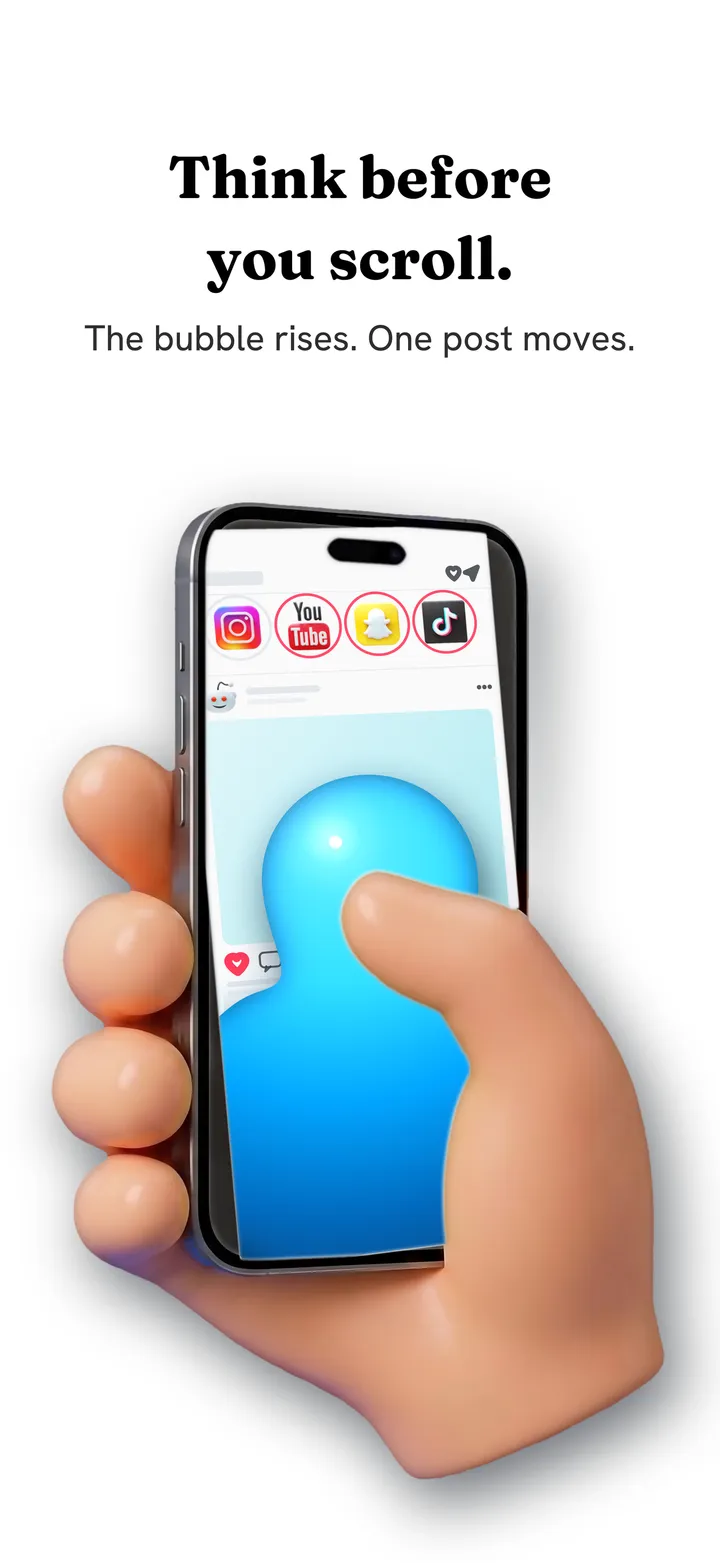
TikTok is the purest version of the endless feed. There is no tab to ignore and no feed to switch away from: the app opens straight into For You, every video is one swipe from the next, and the recommendations get better at holding you the longer you stay.
That design is why trying harder does not work. To stop scrolling TikTok, you change what the app opens on and what each swipe costs. Here is how, on Android and iPhone, without deleting the app or losing the people you follow.
What changes:
- Stays: Following, search, messages, your profile and your own uploads.
- Goes: the For You feed, the part that never runs out.
- Changes: each swipe takes a small deliberate push, and sessions can end on a limit you set.
How to stop scrolling TikTok in four steps
Install Fluid Friction
Get it free on Google Play or on the App Store. There is no account.
Block the For You feed
Add friction, or a session limit
Turn on scroll friction for TikTok so the feed only moves after a small push. On Android you can also set a session scroll limit, which ends a session after a set number of swipes. On iPhone, the Session Timer shows how long you have been there.
Schedule the late hours
Use Sleep & Alarm to keep TikTok closed from bedtime until your alarm, when TikTok sessions run longest, or Scheduled Blocking for any other hours.
Why TikTok is harder to stop than other apps
Most apps have something you came for and a feed attached. TikTok is the feed. Its For You page learns quickly what holds you, and because every video is short, there is never a natural point to stop: by the time one ends, the next has already started with a single flick.
That is why blocking For You and adding friction work better than willpower. With For You gone, TikTok opens on the people you chose, a feed that runs out. With friction on, each swipe becomes a small decision instead of a reflex. People who make both changes tend to notice TikTok getting shorter rather than rarer: they still open it, watch what they came for, and leave. The wider picture is in how to stop scrolling.
How long until TikTok feels different
Most people notice it within the first few days. Sessions get shorter before they get rarer: you still open TikTok, watch what friends posted or something you searched for, and close it, because nothing is queuing up the next video for you. After a couple of weeks, the urge to open it on reflex fades too. If it creeps back, Screen Time or Digital Wellbeing will show you, and turning friction up a level for a week usually resets it.
What TikTok's own settings can do
- Daily screen time. In TikTok's settings you can set a daily limit, but it is unlocked with a passcode you chose, so most people learn to type it without thinking.
- Not interested and refreshing your feed. These retrain or reset recommendations. Useful over weeks, not in the moment.
- Notifications. Turning off everything but messages removes most of the reasons TikTok opens in the first place.
They are worth setting alongside the steps above, but none of them changes the swipe, which is where the time goes. Why limits like these tend to fail is in why app blockers don't work.
Which setup fits you
| You want | Do this |
|---|---|
| TikTok for people you follow | Block For You |
| To still watch For You, less | Friction plus a session limit |
| TikTok only in the day | Sleep & Alarm or Scheduled Blocking |
| TikTok gone entirely | An app block or Screen Time |
If you keep going back to For You
On iPhone, the TikTok app itself still has For You, so the most common slip is simply opening it instead of Fluid Friction. Move the TikTok app off your home screen, or limit it with Screen Time, so the version without For You is the easy one. On Android, Feature Blocking works inside the real app, so there is nothing to route around.
If you find yourself pushing through the friction for long sessions, raise it for TikTok only, or set a session scroll limit so a session has an end you agreed to in advance. And if TikTok has crept into the hours you work, Scheduled Blocking can close it during those hours and reopen it after, without you having to decide every time.
Common questions
How do I stop scrolling TikTok?
Block the For You feed so TikTok opens on Following, add friction so every swipe takes effort, and set a schedule for late hours. Fluid Friction does all three for free on Android and iPhone, without deleting TikTok.
Can you turn off the For You page on TikTok?
Not in TikTok's settings. On Android, Fluid Friction's Feature Blocking closes For You inside the app; on iPhone, Block For You feed hides it in Fluid Friction's browser, so TikTok opens on Following.
Does TikTok's screen time limit work?
It works only as long as you respect it, because it unlocks with a passcode you set yourself. Most people stop noticing it within a couple of weeks, which is why changing the feed and the swipe works better.
Does this work on iPhone and Android?
Yes. On Android, Fluid Friction blocks For You inside TikTok's real app and adds friction. On iPhone it opens TikTok in its own browser with For You hidden. Both are free with no account.
Will I still see my messages and the people I follow?
Yes. Blocking For You leaves Following, search, messages and your profile working, so you keep the people you chose and lose the endless recommendations.