Block the feed, keep the app
How to Turn Off YouTube Recommendations (and Autoplay)
YouTube has no setting labelled "turn off recommendations", but two built in tricks get close: pausing watch history empties the home feed, and the autoplay switch stops the next video. To turn off YouTube recommendations everywhere, including up next and end screens, open YouTube in Fluid Friction on iPhone and use Hide Recommendations. It is free.
On this page (7 sections)
You open YouTube to watch one tutorial. The home screen offers twenty other videos, the sidebar offers ten more, the tutorial ends and the next video starts by itself. An hour later you are watching something you never searched for.
Recommendations are YouTube's engine, so there is no switch called "off". But you can get close, and on iPhone you can get all the way. Here is how to turn off YouTube recommendations, what each method costs, and the free option that removes them while you watch.
What you can expect:
- Watch history off: an empty home feed, but your normal suggestions get worse everywhere, including "continue watching".
- Autoplay off: the next video no longer starts by itself, though it is still suggested.
- Fluid Friction on iPhone: a watch page with just the video you chose, and optionally a home screen with just search.
Turn off YouTube recommendations with the built in settings
Pause your watch history
In the YouTube app, open your profile, then Settings, and find the history settings. Pause or turn off watch history. YouTube stops filling the home feed with recommendations for accounts without much watch history, so it may take effect gradually if you have years of it.
Turn off autoplay
Open Settings, then Playback or Autoplay, and switch off autoplay. The next video stops starting on its own.
Clean up what remains
On any recommended video, tap the three dots and choose Not interested or Don't recommend channel. This tunes what you see but does not turn anything off.
Menus move between YouTube versions, so if a setting is not where described, search YouTube's settings for "history" or "autoplay".
Turn off YouTube recommendations completely on iPhone
Apple does not let one app change another, so the way to remove recommendations while you watch is to open YouTube's website inside an app that can restyle it.
Install Fluid Friction from the App Store
Get it on the App Store. There is no Fluid Friction account, and the blocking tools are free.
Open YouTube inside Fluid Friction
YouTube works logged out, which is the quickest way to try it. Signing in is optional and happens on Google's own page.
Turn on Hide Recommendations
Related videos, up next, end screen suggestions and autoplay disappear from the watch page. A video ends when it ends.
Add Search Only Mode or Block Shorts if you want
Search Only Mode hides the home feed and keeps search and playback. Block Shorts hides the Shorts shelf, tab and player; more in how to block YouTube Shorts on iPhone.
On Android: block Shorts and slow the feed
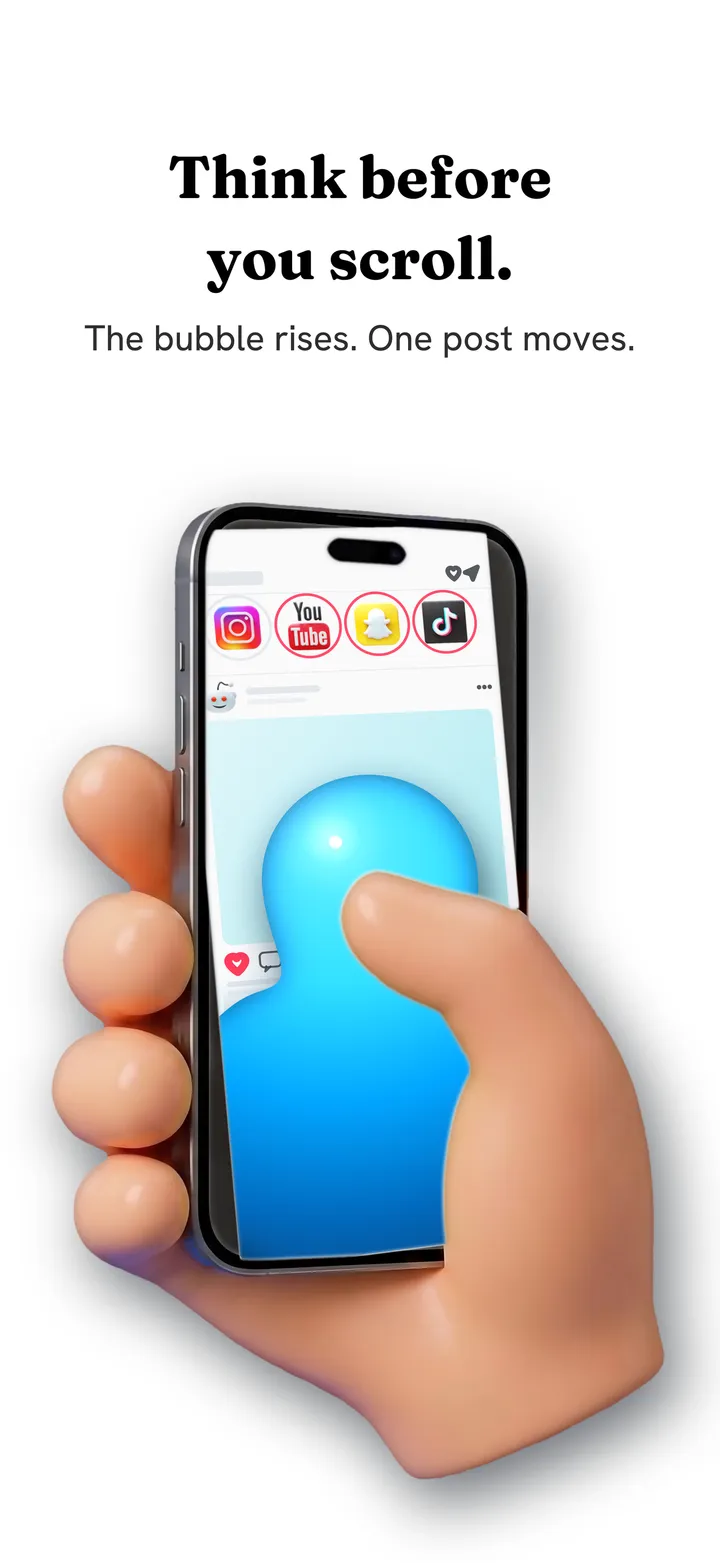
On Android, Fluid Friction works inside YouTube's real app. It cannot hide recommendations there, but it can close the Shorts player the moment it opens and put friction on scrolling, so each swipe drags through on screen fluid and a bubble has to rise off the screen before the feed moves. The Shorts walkthrough is in how to block YouTube Shorts on Android, and the app is free on Google Play.
Why YouTube recommendations are so hard to escape
Recommendations are not a side feature of YouTube; they decide most of what gets watched. They sit on the home screen, beside every video, at the end of every video and in the autoplay queue, so there is always a next thing within a thumb's reach. That is why turning off one surface rarely helps: the watch page offers ten more.
The watch history trick shows the trade off clearly. With history off, the home screen goes quiet, but YouTube also forgets what you like, so the suggestions you do see get worse and "continue watching" disappears. Hiding recommendations in a browser keeps your history and your subscriptions while removing the surfaces that pull you onward. Friction works on the same idea from the other side, by making each swipe a small decision; the mechanics are in how scroll friction works.
If it stops working
If recommendations reappear on the home feed with watch history off, YouTube may be using your older history; clearing it removes what it can still draw on. If up next or autoplay comes back on iPhone, make sure you opened YouTube through Fluid Friction rather than the YouTube app, and keep Fluid Friction updated, since YouTube changes its website regularly.
Which method fits you
| You want | Use |
|---|---|
| An empty home feed, no app | Pause watch history |
| The next video to stop starting | Turn off autoplay |
| A clean watch page on iPhone | Hide Recommendations in Fluid Friction |
| Search and nothing else on iPhone | Search Only Mode |
| No Shorts on Android | Feature Blocking for YouTube Shorts |
Common questions
Can you turn off YouTube recommendations completely?
Not in YouTube's own app. Pausing watch history empties the home feed and turning off autoplay stops the next video, but up next and end screens remain. On iPhone, Fluid Friction's Hide Recommendations removes those too, free.
Does turning off watch history stop recommendations?
It empties the home feed for accounts without significant watch history and makes suggestions elsewhere worse. Up next and end screen suggestions can still appear while you watch.
How do I stop YouTube from playing the next video?
Turn off autoplay in YouTube's settings, under Playback or Autoplay. In Fluid Friction's browser on iPhone, Hide Recommendations removes autoplay along with the suggestions.
Does this work on iPhone and Android?
Hiding recommendations works on iPhone, in Fluid Friction's browser. On Android, Fluid Friction blocks YouTube Shorts inside the real app and adds friction to scrolling, but it cannot hide recommendations there. Both are free.
How do I disable the YouTube home feed?
Pausing watch history empties the home feed for accounts without much history. On iPhone, Fluid Friction's Search Only Mode hides the home feed completely while keeping search and playback, free.
Do I need a Google account to use YouTube in Fluid Friction?
No. YouTube works logged out in the friction browser. Signing in is optional and happens on Google's own page, so Fluid Friction never sees your password.