Block the feed, keep the app5 min read
Instagram Without Reels: 5 Ways That Work in 2026
Instagram has no switch that turns Reels off. You can get Instagram without Reels five ways: tune Instagram's settings, limit the whole app, use the website with a blocker, lock the Reels button with Guided Access, or use an app that blocks the Reels feed and keeps DMs, Stories and your feed. Only the last one also plays the Reels your friends send you.
On this page (8 sections)
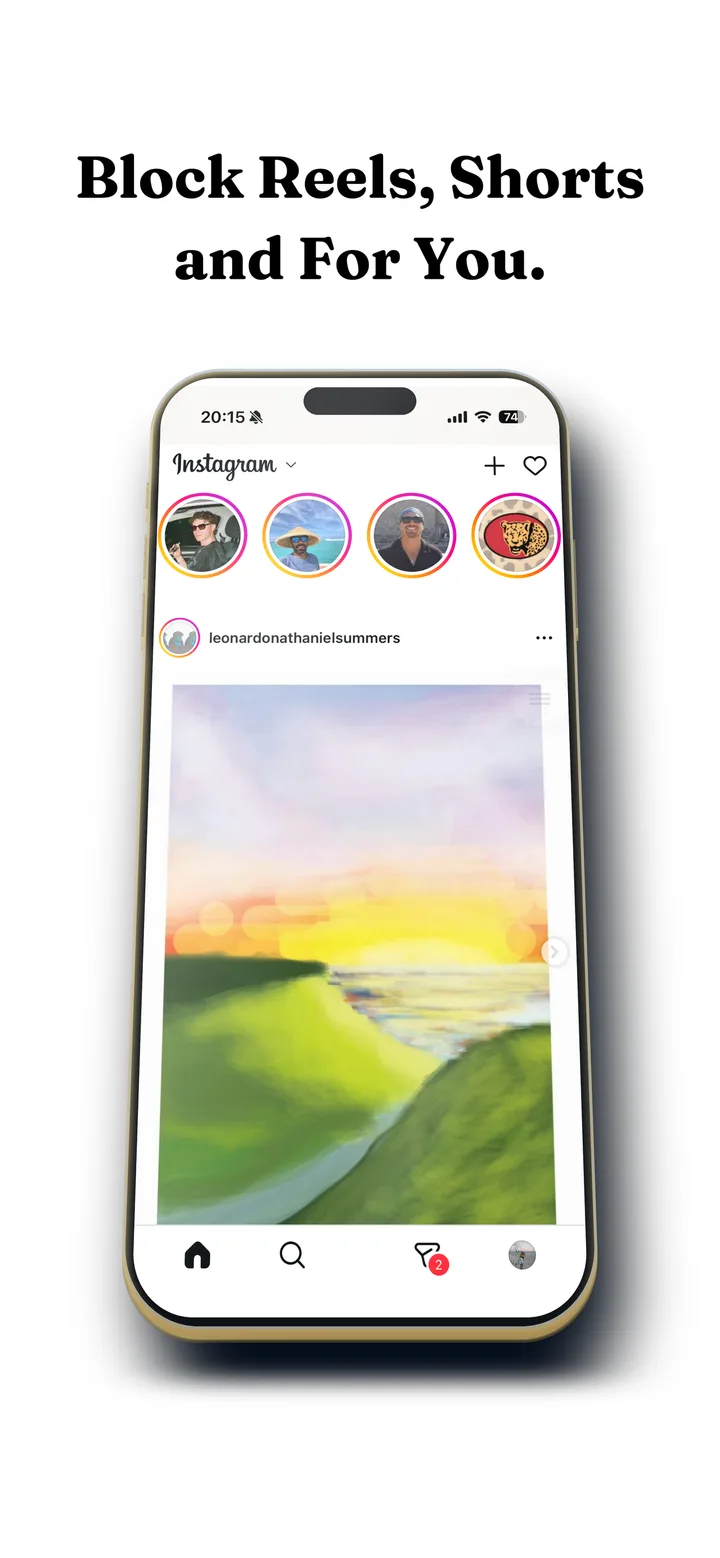
Most people who want Instagram without Reels do not want to quit Instagram. They want the part they opened it for: a friend's message, a story, the photos from people they actually follow. Reels is the part they did not ask for, a full screen video feed that starts the moment a thumb lands on the wrong tab.
Instagram does not offer a way to turn Reels off, so every route to Instagram without Reels is a workaround. Some of them remove too much, some remove too little, and one of them removes exactly Reels. Here are all five, with what each one keeps.
The five ways, side by side
| Method | Reels gone? | DMs kept? | Phones |
|---|---|---|---|
| Instagram's own settings | No, fewer suggested reels | Yes | Both |
| Screen Time or Digital Wellbeing limit | Yes, with all of Instagram | No | Both |
| Instagram website with a blocker | Mostly | Yes, in the browser | iPhone (Safari), computer |
| Guided Access on the Reels button | The tab only, while active | Awkward | iPhone |
| A Reels blocker app | Yes, shared Reels still play | Yes | Both |
1. Instagram's own settings
Instagram gives you three controls that touch Reels without removing them. Marking a reel as "Not interested" nudges what it recommends. Snoozing suggested posts hides recommended posts in your home feed for 30 days. Switching the home feed to Following, from the Instagram logo at the top, shows only accounts you follow, in time order.
All three help at the edges, and none of them touches the Reels tab. The Following view also resets when the app restarts, so you end up choosing it again every day. If your problem is the home feed rather than Reels, these are worth turning on anyway, and they cost nothing.
2. Limit the whole app
Screen Time on iPhone and Digital Wellbeing on Android can put a daily limit on Instagram, or block it on a schedule. With a passcode someone else sets, it is a real wall, and some people need exactly that.
The cost is that the limit cannot tell Reels from your messages. When it fires, your DMs go with it, which is why so many people tap "Ignore limit" and stop taking it seriously. A limit treats Instagram as one object, and Instagram without Reels is not the same goal as less Instagram. There is more on that gap in why app blockers don't work.
3. Instagram on the web, with a blocker
Instagram's website works in any browser, and a content blocker can hide the Reels link and the Reels page there. On iPhone, several Safari extensions do this for instagram.com; on a computer, browser extensions do the same.
It works, with two catches. You have to remember to open Instagram in Safari instead of tapping the app icon, and the native app stays one tap away with Reels fully intact. Most people who try this delete the app or move it off the home screen, which is the step that makes any of these methods stick.
4. Guided Access on the Reels button (iPhone)
This is the trick that does the rounds on Reddit. Turn on Guided Access in Settings, under Accessibility. Open Instagram, triple click the side button, and circle the Reels tab so taps there are ignored.
It does block the tab. It also locks you inside Instagram until you end the session with the triple click and your passcode, it does nothing about a Reel opened from a message or a profile, and it has to be set up again every time. It is a clever workaround, and few people keep it up for more than a few days.
5. A Reels blocker that keeps DMs and the Reels friends send
The only route that gives you Instagram without Reels and nothing else missing is an app that blocks the Reels feed specifically. How it does that depends on the phone.
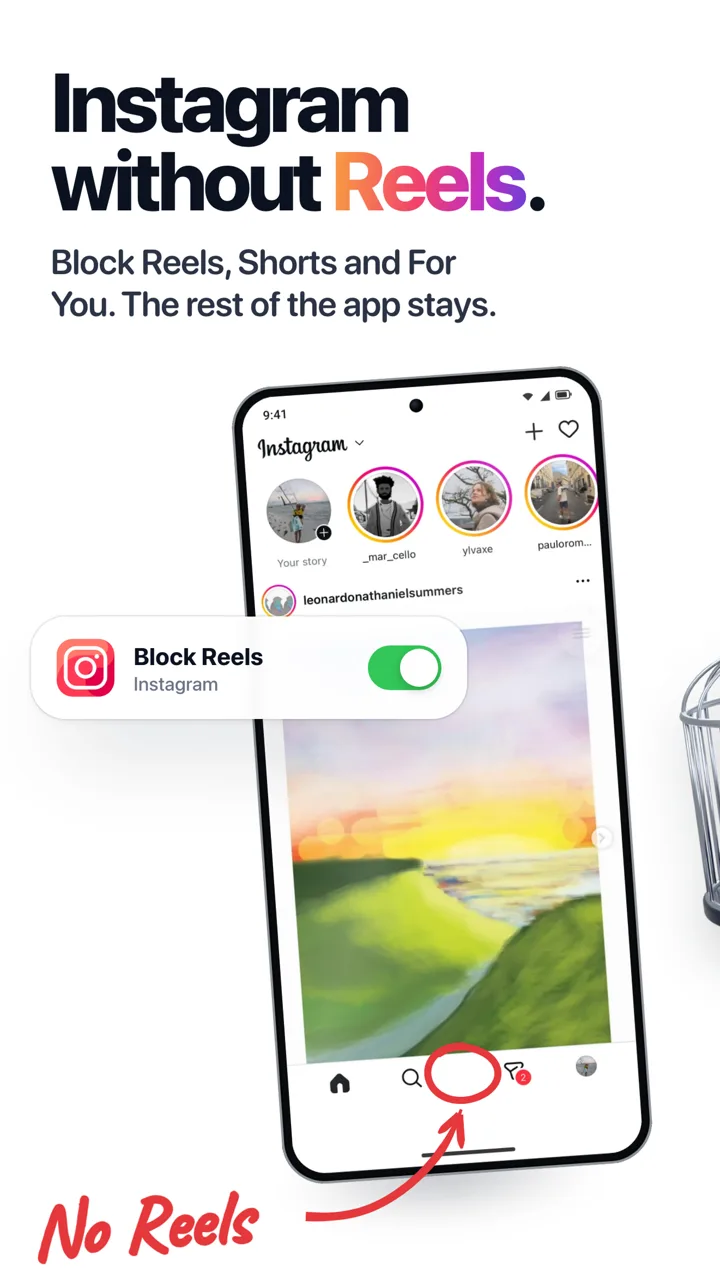
On Android, Fluid Friction from Google Play closes the Reels screen inside the real Instagram app, so you keep using the app you already have, with messages, Stories and your feed working as normal. The full setup is in how to block Instagram Reels on Android.
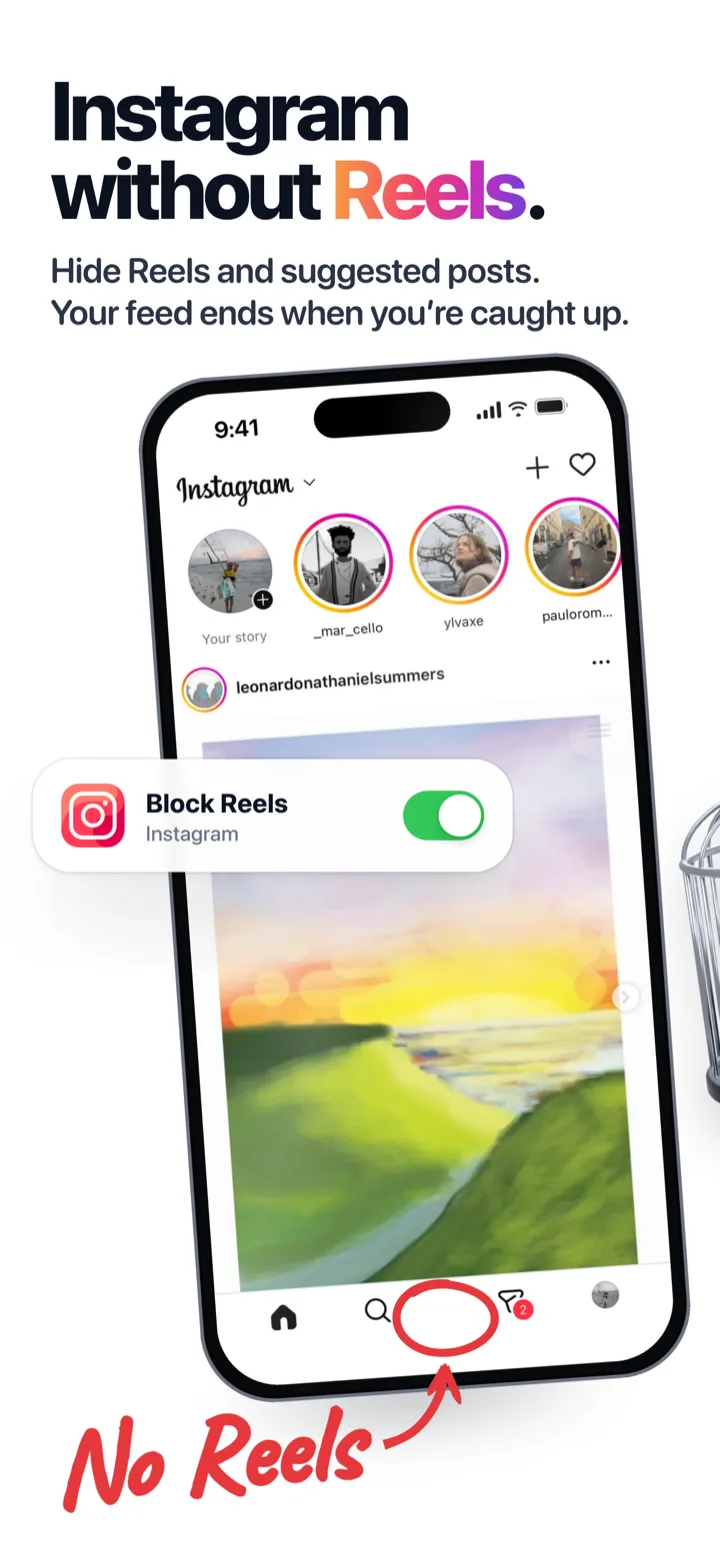
On iPhone, Apple does not let one app reach inside another, so Fluid Friction from the App Store opens Instagram in its own browser, where the Reels tab is hidden and the Reels feed will not swipe. The steps are in how to block Instagram Reels on iPhone.
On both phones, a Reel a friend sends you in a chat still plays. That matters more than it sounds: half of what keeps people on Instagram is friends sending each other Reels, and most blockers break that conversation. Watching the one video someone picked for you is not the problem. Swiping on from it into the feed is, and that stays blocked. The same goes for TikTok videos friends send you, and for Snapchat Spotlights sent in a chat on Android. If you would rather make a clean break, on Android one switch blocks the videos friends send as well.
Which way to Instagram without Reels fits you
| What you want | Use |
|---|---|
| Fewer reels, no setup | Instagram's settings plus the Following feed |
| Less Instagram, full stop | A Screen Time or Digital Wellbeing limit someone else locks |
| Instagram without Reels, keeping DMs and shared Reels | A Reels blocker app |
| Messages only during work | DMs Only mode |
| A comparison of the blocker apps | Apps that block Instagram Reels, compared |
Whichever you pick, make the unrestricted version harder to reach than the restricted one. Every method on this list fails the same way: the original app sits one tap away and wins on convenience. Move it off the home screen, or delete it if you can. If the feed is still too easy to scroll once Reels are gone, scroll friction makes each swipe take a deliberate push instead of a flick.
Common questions
Can you turn off Reels on Instagram?
No. Instagram has no setting that disables Reels. You can reduce suggested reels with Not interested, snooze suggested posts for 30 days, or switch your feed to Following, but the Reels tab stays. Removing it takes a blocker app or a workaround.
How do I use Instagram without Reels on iPhone?
Open Instagram inside an app that can hide the Reels tab, such as Fluid Friction's in-app browser, and turn on Block Reels. Your DMs, Stories and feed keep working. Safari extensions on instagram.com and Guided Access are the other options.
How do I use Instagram without Reels on Android?
Use an app that blocks the Reels screen inside the real Instagram app. Fluid Friction does this with Feature Blocking, so messages, Stories and your feed work as usual and only the Reels feed is closed.
Can I still watch a Reel a friend sends me?
Yes, with Fluid Friction a Reel sent to you in a chat still plays. What is blocked is swiping on from it into the Reels feed. On Android, one switch blocks the videos friends send too.
Does deleting the Reels tab break DMs or Stories?
No. A Reels blocker only removes the Reels tab and the Reels feed. Messages, group chats, Stories, posting, your profile and search all keep working the same way.
Is there a free way to get Instagram without Reels?
Yes. Instagram's own settings, Screen Time and Guided Access are free, and Fluid Friction's Reels blocking is free on both stores with no account. The optional Pro subscription only adds cosmetic extras and unlimited cloud AI.