Block the feed, keep the app
How to Block Instagram on Your Phone (Android and iPhone)
To block Instagram on your phone you have four levels to choose from: a pause before it opens, a daily number of opens, a schedule that blocks it during set hours, or a full block. Android and iPhone both have free built in tools, and Fluid Friction adds a limited number of opens per day and a calm block screen on both. If only Reels is the problem, block that instead.
On this page (6 sections)
Deleting Instagram works for about a week. Then a friend sends you something, you reinstall it, and you are back where you started with the app freshly logged in. Blocking Instagram on your phone is the version that sticks, because the app stays installed and the rule does the work.
The useful question is how hard the block should be. Most people pick the strictest option, resent it within days, and switch it off. Picking the right level first is what makes it last.
What each level does:
- Pause: Instagram still opens, after a short breathing or reflection screen.
- Limit: a set number of opens per day, each one a fixed session length.
- Schedule: blocked during the hours you choose, open the rest of the day.
- Strict: blocked with no unlock, for when you genuinely want it gone.
Block Instagram on Android in four steps
Android's own Digital Wellbeing, in your phone's settings, can put a free daily timer on Instagram. It is a single timer per day, though, and it greys the app out until midnight. Fluid Friction gives you the other levels.
Install Fluid Friction and allow the permission it asks for
Get it free on Google Play. There is no account. Android shows a warning when you allow it; that permission is how the app knows Instagram is open.
Open Tools, then App Blocking, and create a group
Add Instagram, and any other app you want under the same rule, to one group.
Choose the mode
Pause shows an intervention on every open. Limit sets a daily number of opens and a session length, for example five opens of seven minutes each. Strict blocks the group with no way to unlock it.
Add a schedule if the problem has a time of day
Scheduled Blocking turns the group on during the hours you pick, such as work hours or after 10pm, and leaves it open the rest of the time.
Not sure which mode to start with? Limit is the one most people keep. Five opens of seven minutes covers messages, a story or two and a post you meant to share, and it stops the forty minute sessions that start with a single notification. Move to Strict only if you find yourself spending all five opens before lunch, every day.
Block Instagram on iPhone
On iPhone every blocker, including Apple's own, is built on Screen Time, so the first option costs nothing.
With Screen Time. Open Settings, Screen Time, App Limits, add a limit and pick Instagram. For set hours, use Downtime instead and leave Instagram out of Always Allowed. Ask someone else to set the Screen Time passcode, because a limit you can dismiss yourself rarely lasts; the common reasons it fails are in iPhone Screen Time not working.
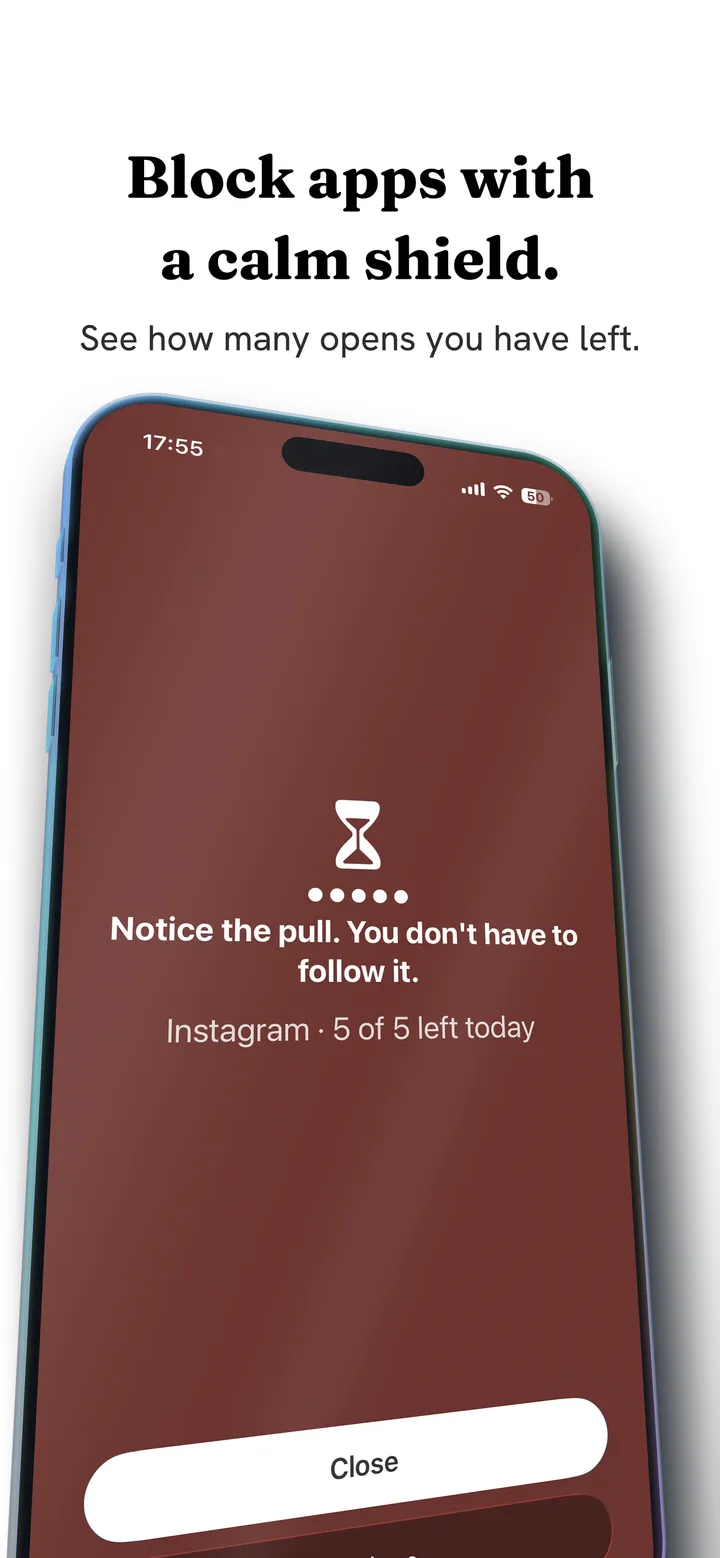
With Fluid Friction. Install it from the App Store, pick Instagram in the app's blocking settings, and set how many opens you get per day. When you open Instagram, a calm shield shows how many opens are left instead of an error, and once they are gone the shield stays until tomorrow.
Close the browser loophole
Blocking the app is not the end of it. The first thing most people do when Instagram is blocked is open instagram.com in their browser, which works almost as well.
- On iPhone, Screen Time can block the website too. Under Screen Time, open Content and Privacy Restrictions, then the web content setting, choose to limit websites, and add instagram.com to the Never Allow list.
- On Android, Fluid Friction blocks the app, not the website. If you catch yourself opening instagram.com in Chrome, block it in your browser's or router's settings as well, or use the website on purpose, knowing it has no Reels tab.
Block only the part that hurts
Most people who search for how to block Instagram do not want to lose their DMs. They want to lose Reels. If that is you, block the feed rather than the app:
- On Android, Feature Blocking closes Reels inside Instagram's real app while DMs, Stories and posting keep working. See how to block Instagram Reels on Android.
- On iPhone, Instagram opened in Fluid Friction's browser can hide Reels and Explore, or switch to DMs Only. See how to block Instagram Reels on iPhone.
You can also leave Instagram fully open and make the scrolling itself cost effort. Each swipe drags through on screen fluid, and past a threshold a bubble has to rise off the screen before the feed moves.
Block Instagram on your phone: which level fits you
A block that is too strict gets switched off at the first inconvenient moment, which is why so many blockers end up uninstalled; more in why app blockers don't work. Start one level softer than you think you need.
| You want | Use |
|---|---|
| To stop opening Instagram on reflex | Pause on every open |
| Instagram a few times a day, not fifty | A daily limit of opens |
| No Instagram during work or after 10pm | A schedule |
| Instagram gone for now | Strict block, or Screen Time with someone else's passcode |
| DMs kept, Reels gone | Block Reels instead of the app |
Common questions
How do I block Instagram on my phone for free?
On Android, Digital Wellbeing sets a free daily timer, and Fluid Friction adds free pauses, open limits, schedules and strict blocking. On iPhone, Screen Time's App Limits and Downtime are free, and Fluid Friction adds a free daily open count behind a calm shield.
Can I block Instagram but still get messages?
Not if you block the whole app, since DMs live inside it. Block Reels and Explore instead, or use DMs Only in Fluid Friction's browser on iPhone, so messages keep working while the feeds are gone.
How do I block Instagram during certain hours?
On iPhone, use Screen Time's Downtime and keep Instagram out of Always Allowed. On Android, put Instagram in an App Blocking group in Fluid Friction and attach a schedule, such as 10pm to 7am.
Can a blocked Instagram be unblocked?
Pause and Limit modes always let you through in some form, which is deliberate. Strict mode in Fluid Friction has no unlock. On iPhone, a Screen Time limit is only as firm as whoever holds the passcode.
How do I block Instagram on my child's phone?
Use the controls built for that. On iPhone, set up Screen Time through Family Sharing and limit or block Instagram from your own phone. On Android, Google's Family Link does the same. Fluid Friction is built for blocking your own Instagram rather than for parental control.
Does this work on iPhone and Android?
Yes. On Android, Fluid Friction's App Blocking gives you pauses, daily open limits, schedules and a strict block. On iPhone, Screen Time's App Limits and Downtime are built in, and Fluid Friction adds a daily open count behind a calm block screen. Both are free.
Is it safe to use an app to block Instagram?
Yes, if you pick one that keeps your data on your phone. Fluid Friction needs no account, never sees your Instagram login, and never reads your messages. It only needs to know when Instagram is open so it can apply your rule.
Is blocking better than deleting Instagram?
Usually. Deleting removes DMs and everything else too, and most people reinstall within days. A block keeps the app installed and lets you choose how much of it you can reach.