Block the feed, keep the app
How to Block Facebook Reels and Keep the Rest of Facebook
Facebook lets you hide the Reels tab from its tab bar, but reels keep appearing in your feed and open when you tap them. To block Facebook Reels fully you need something outside the app: on Android, a blocker that closes the Reels screen inside Facebook's real app, and on iPhone, a browser that loads Facebook with Reels hidden. Fluid Friction does both, free.
On this page (6 sections)
Most people keep Facebook for a short list of reasons: groups, Marketplace, events, and family who never moved anywhere else. Reels is not on that list. It arrived later, it sits in the middle of the feed, and it turns a quick check on a group into twenty minutes of videos from strangers.
Facebook does let you hide the Reels tab, and that is worth doing first. It just does not stop reels: they still fill your feed and open when you tap one. To block Facebook Reels properly and keep the parts you use, the rest of the fix has to come from outside the app, and it takes a couple of minutes on either phone.
What changes once it is set up:
- Stays: your friends' posts, groups, Marketplace, events, and Messenger.
- Goes: the Reels feed, and on iPhone also Watch and suggested posts if you want.
- Optional: friction on every swipe, so the home feed stops being free to scroll as well.
First, hide the Reels tab in Facebook's settings
Open the menu, then Settings and privacy, Settings, Preferences, and Tab bar (sometimes shown as Customize the bar). Set Reels to hidden. The tab disappears from the bottom bar. Menus move between Facebook versions, so if you cannot find it, search Settings for "tab bar".
What it does not do: reels still appear in your main feed, in a "Reels and short videos" row and as posts, and any reel you tap still opens the full screen player that swipes to the next one. That is the part the steps below close.
Block Facebook Reels on Android in four steps
On Android, a blocker can tell the Reels player apart from a group or a Marketplace listing, so it closes only Reels and leaves the rest of Facebook alone.
Install Fluid Friction and allow the permission it asks for
Get it free on Google Play. There is no account. Android shows a warning when you allow it, and Fluid Friction never reads your messages.
Open Tools, then Feature Blocking, then Facebook
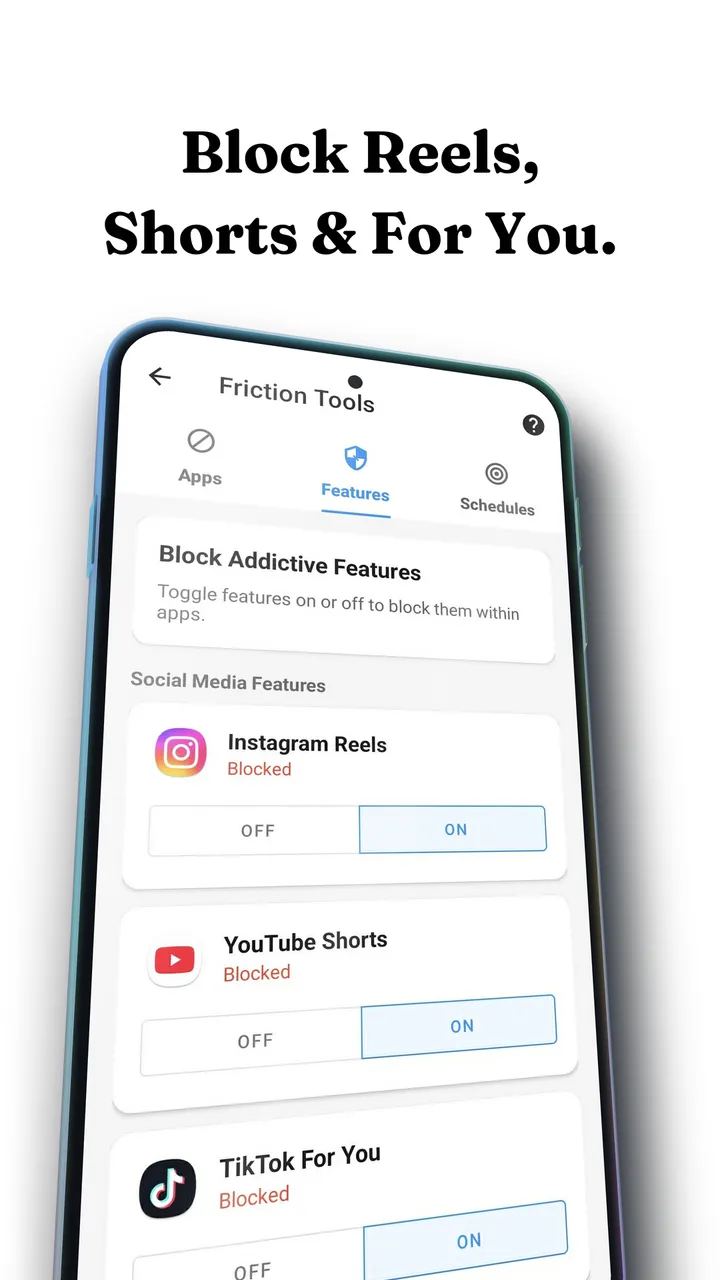
Reels is its own switch, next to the ones for Instagram Reels and YouTube Shorts. Turn it on.
Turn on the Reels switch
Feature Blocking sends you straight back out of Reels the moment it opens, so the rest of Facebook stays usable. If you would rather keep Reels but slow it down, leave this off and turn on scroll friction for Facebook instead.
Add a schedule if evenings are the problem
A schedule can keep Reels gentle in the day and blocked after 10pm, which matches when most people lose time to it.
Block it or slow it down? If you only open Facebook for groups or Marketplace, block Reels; you will rarely notice it is gone. If you have uninstalled blockers before, try friction first: a hard block gets switched off on a bad evening, while friction leaves nothing to resent, so it tends to stay on.
Block Facebook Reels on iPhone in four steps
iOS forbids one app from changing another, so the route on iPhone is Facebook's website inside an app that is allowed to restyle it.
Install Fluid Friction from the App Store
Get it on the App Store. No account for Fluid Friction, and the blocking tools are free.
Open Facebook inside Fluid Friction and sign in
Facebook's own login page loads in the in-app browser. You sign in to Facebook, not to us, and the session stays on your device.
Turn on Block Reels
Reels disappears. Block Watch removes the algorithmic video feed too, and Block Suggestions hides suggested posts and pages, leaving posts from friends and pages you follow.
Use Marketplace Mode when that is all you need
Marketplace Mode restricts Facebook to Marketplace, which is the setting people use when they are buying or selling and do not want the feed at all.
Why a block alone usually fails, and what friction adds
A block on Reels removes one surface. The home feed is still an infinite column that moves for free with one thumb flick, and on Facebook that feed is full of video too. Scroll friction changes the swipe itself: each scroll drags through on screen fluid, and past a threshold a bubble has to rise off the screen before the feed moves. A fast flick bursts the bubble, and a burst does not count.
You can still scroll, deliberately, and you stop scrolling by accident. On Facebook that matters more than on most apps, because video is mixed into the main feed, the group feeds and Marketplace listings, so a Reels block alone still leaves plenty of free scrolling behind. The reasons a hard block on its own tends to get switched off are in why app blockers don't work.
What Facebook's own settings can and cannot do
Beyond hiding the tab, Facebook lets you hide a reel, tap Show less, hide the "Reels and short videos" row for now, or snooze people and pages whose videos you keep seeing. All of that tunes what appears; none of it closes the Reels player, and the mix drifts back within weeks. Deleting the app removes groups and Marketplace with it.
| You want | Use |
|---|---|
| Reels gone, Facebook kept | Feature Blocking on Android, Block Reels on iPhone |
| No video feeds at all | Block Reels and Block Watch on iPhone |
| Only Marketplace | Marketplace Mode on iPhone |
| Less Facebook in the evening | A schedule |
| The home feed slowed down too | Scroll friction |
Common questions
Can you turn off Reels on Facebook?
Partly. Facebook lets you hide the Reels tab under Settings, Preferences, Tab bar, but reels still appear in your feed and open when tapped. Blocking them fully needs an app outside Facebook: Feature Blocking on Android, or a browser that hides Reels on iPhone.
Will blocking Facebook Reels affect Messenger or groups?
No. On Android only the Reels screen is closed, so groups, Marketplace, events and Messenger work as before. On iPhone, Block Reels hides Reels in the browser while the rest of Facebook stays.
Is there a free way to block Facebook Reels?
Yes. Fluid Friction blocks Facebook Reels for free on Android and iPhone, with no account. The optional subscription only adds cosmetic extras such as themes and dark mode.
Does this work on iPhone and Android?
Yes, both. On Android, Fluid Friction closes the Reels screen inside Facebook's real app. On iPhone, where no app may change another, it opens Facebook in its own browser with Reels hidden. Both are free.
Is it safe to use an app to block Facebook Reels?
Yes, if it keeps your data on your phone. Fluid Friction needs no account and never reads your messages. On iPhone you sign in on Facebook's own page inside the app's browser, and your session stays on your device.
Does this also block Instagram Reels?
Each is its own switch. Many people turn on both, since Instagram Reels and Facebook Reels pull in the same way. The Instagram version is in how to block Instagram Reels on Android.
Can I use Facebook only for Marketplace?
On iPhone, yes: open Facebook in Fluid Friction's browser and turn on Marketplace Mode, which restricts Facebook to Marketplace. On Android, blocking Reels and adding friction to the feed gets you most of the way.