How friction works4 min read
How to Share Screen Time With Friends on iPhone (What Works)
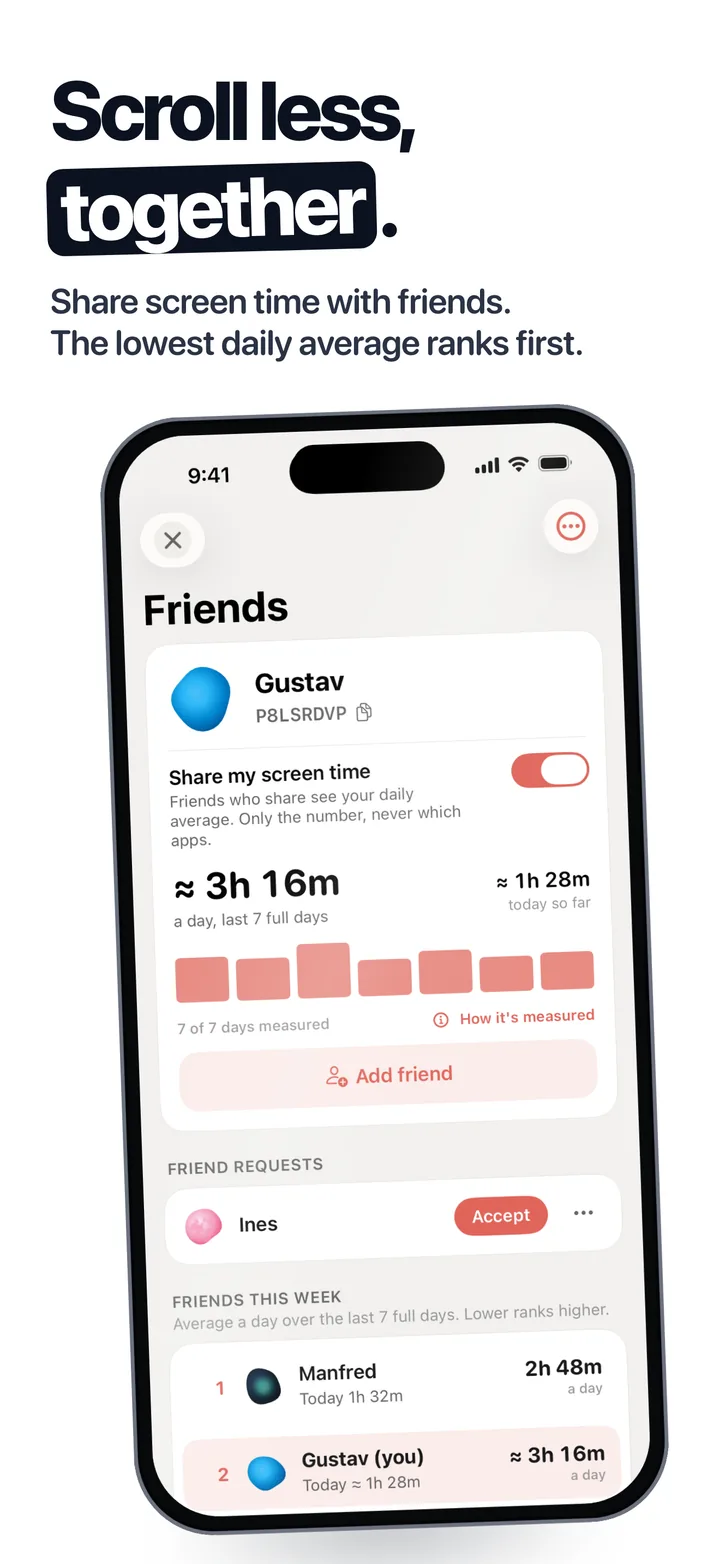
iPhone has no built in way to share screen time with friends. Share Across Devices only covers your own devices, and Family Sharing is built for parents and children. To share screen time with friends on iPhone automatically, use an app with a friends leaderboard, such as Fluid Friction, which is free and also works with friends on Android.
On this page (9 sections)
You made a bet with a friend, or you are cutting down together, and you want to see each other's screen time. Then you open Settings and find there is no button for it.
That is by design. Apple keeps Screen Time on your device and only shares it between your own devices, or from a child to a parent. Here is what Apple's settings actually do, and how to share screen time with friends on iPhone automatically, for free.
How to share screen time with friends on iPhone
Your friends do the same steps on their phones. Android friends can join too.
Install Fluid Friction
Free on the App Store. Open the Tools tab and choose Friends & Leaderboard. It is for ages 16 and up.
Turn on Share my screen time
Pick a nickname, then switch sharing on. When iOS asks which apps to measure, choose All Apps & Categories so the figure covers the whole phone.
Send your friend code
Your 8 character code sits under your name, with a link and a QR code. Send it to your friend, or tap Add friend and enter theirs.
Accept the request
Requests appear on the Friends screen under Friend requests. Tap Accept and you are friends.
Give it a day
Measuring starts when you turn sharing on, so your first number appears after your first full day. The board then ranks your average over the last 7 full days, lowest first.
What sharing looks like over a week
What your friends can and cannot see
- Your totals. Your average a day over the last 7 full days, and today so far. Never which apps, never which websites.
- Both ways or not at all. You see a friend's number only while you share yours. Stop sharing and theirs disappear for you too.
- Your name and look. Friends see your nickname, your bubble theme and your rank. On the anonymous global board you appear under a generated name unless you choose to show your nickname.
- Easy to undo. Stop sharing, remove a friend or leave Friends at any time.
Make sharing worth it
Sharing a number is the start. These three habits turn it into less screen time:
- Pick one check-in day. Look at the board together once a week, not every time you are curious.
- Add a small stake. The highest average buys the coffee. It gives the number a reason to matter.
- Remove the feed that drives your number. Most of the hours sit in one feed. Blocking it, like Instagram Reels on iPhone, is what moves you up the board.
What Apple's own sharing settings do
Share Across Devices. In Settings, then Screen Time, this adds your iPad and Mac time to your iPhone's total. It never shows your number to anyone else.
Family Sharing. The organiser of a family group can set up Screen Time for a child, see the child's reports and set limits. It is built for parents. Adults in the same family do not see each other's screen time, and it is a control relationship, not a comparison between equals.
The manual way: screenshots
The workaround most groups try first:
- Open Settings, then Screen Time.
- Tap See All App & Website Activity.
- Choose Week at the top.
- Screenshot the daily average and send it to the group.
It lasts a week or two. Then someone forgets, someone posts on Wednesday, and nobody can tell whose week is whose, so it stops. A screenshot also shows which apps you used, so crop it to the average.
Why the iPhone number is an estimate
Apple does not let any app read your Screen Time total, and Apple's engineers have confirmed that this is by design. So every iPhone app that shares screen time, Opal included, works from an estimate: iOS tells the app each time you pass certain usage marks during the day.
Fluid Friction shows that figure with "≈" and a How it's measured note. The known iOS errors only overcount, so nobody looks better than they are, and a day that could not be measured counts as no data. If Apple's own number looks wrong, see iPhone Screen Time not working.
When some of your friends have Android
Most sharing apps are iPhone only. Fluid Friction's Friends & Leaderboard is one shared system on iPhone and Android, so an Android friend adds you with the same kind of code and appears on the same board.
Once you are sharing, the next step is usually a bet. Rules and a format that lasts past week one are in screen time competition with friends. To actually bring the number down, pair it with how to reduce screen time.
Common questions
Can you share screen time with friends on iPhone?
Not with Apple's own settings. Share Across Devices only combines your own devices, and Family Sharing is for parents and children. An app with a friends leaderboard, such as Fluid Friction, can share it automatically.
Can I see my friend's screen time on iPhone?
Only if they share it with you through an app you both use. In Fluid Friction, you see a friend's average daily screen time while you both share yours, and never which apps either of you used.
Does Family Sharing show screen time between adults?
No. Family Sharing lets a parent or guardian see a child's Screen Time reports and set limits. Adults in the same family group do not see each other's screen time.
What does Share Across Devices do in Screen Time?
It adds the screen time from your other Apple devices, like an iPad or Mac, to your own total. It does not share anything with other people.
Can I share screen time with a friend who has Android?
Yes, with Fluid Friction. Friends & Leaderboard works across iPhone and Android, so you can add each other with a friend code and see one shared board.
 Screen Time Competition With Friends: A Free LeaderboardStart a screen time competition with friends on iPhone and Android: a free leaderboard, fair rules, and what each app can and cannot measure.
 iPhone Screen Time Not Working? Fix It, Then Fix the Real ProblemiPhone Screen Time not working, or a limit that never blocks? Find which of six causes it is in ten seconds, then fix it in about two minutes.
 How to Reduce Screen Time: 10 Changes That Actually StickHow to reduce screen time without deleting your apps: ten changes ranked by how many hours they save, with the exact iPhone and Android settings.