Block the feed, keep the app
How to Stop Scrolling Instagram (Without Deleting It)
To stop scrolling Instagram without losing your messages, take out the three surfaces that never end, Reels, Explore and suggested posts, and make the feed that remains cost a little effort to scroll. On Android, Fluid Friction blocks Reels inside Instagram; on iPhone it hides Reels, Explore and suggestions in its own browser. Both add friction, free.
On this page (7 sections)
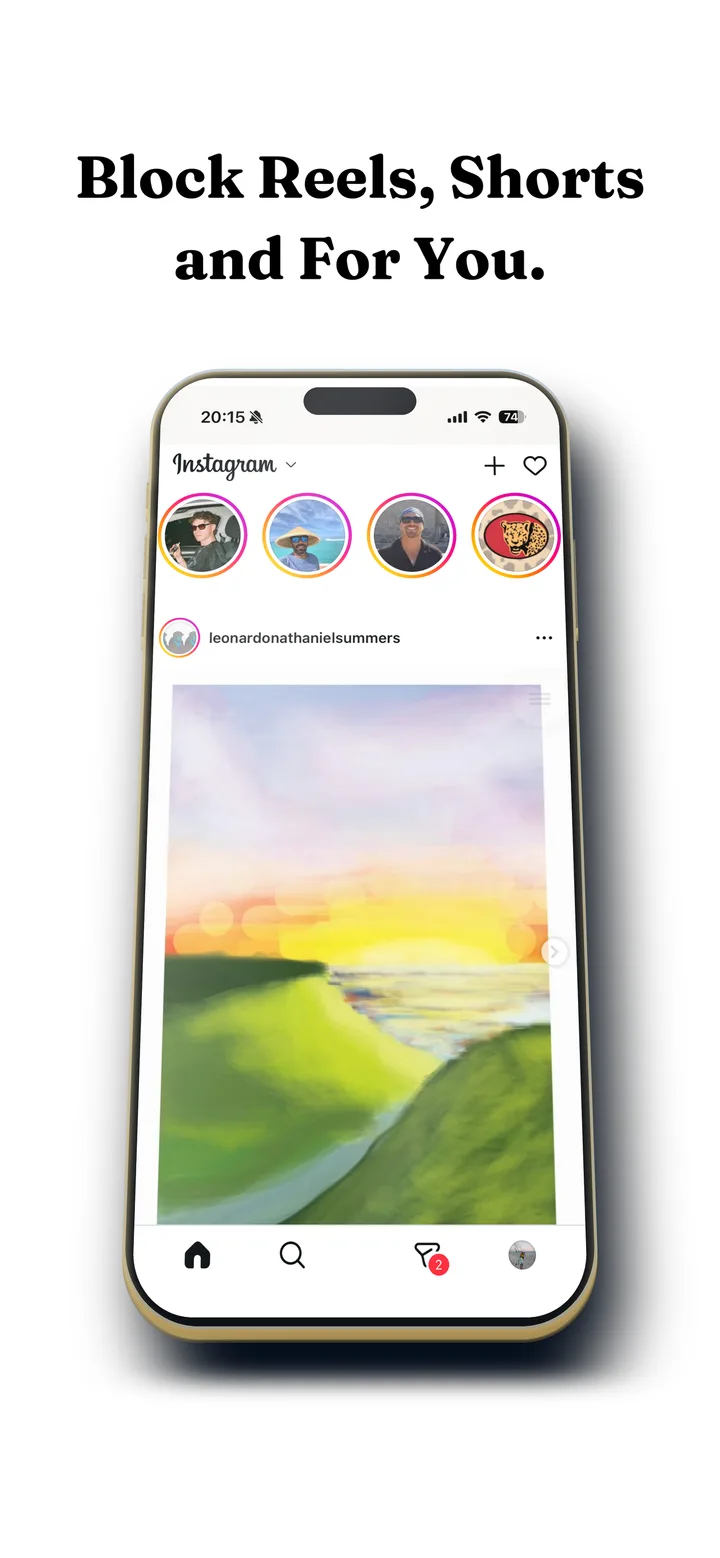
Instagram is hard to quit because half of it is genuinely yours: friends, group chats, the accounts you actually chose. The other half is built to keep you there. Reels, Explore and suggested posts never run out, and they sit one tap from your inbox.
So the way to stop scrolling Instagram is not to delete it. It is to take out the three surfaces that never end and slow down the one that remains. Here is how, on iPhone and Android.
What changes:
- Stays: DMs and group chats, Stories, posting, your profile, and posts from people you follow.
- Goes: Reels, the Explore grid and suggested posts, the three parts with no end.
- Changes: scrolling, which takes a small deliberate push per post.
How to stop scrolling Instagram in four steps
Install Fluid Friction
Get it free on Google Play or on the App Store. There is no account.
Block Reels
On iPhone, hide Explore and suggestions
Turn on Block Explore so search is just search, and Following Only so the feed shows only people you follow. See how to turn off suggested posts on Instagram.
Add friction and a night schedule
Turn on scroll friction for Instagram, then use Sleep & Alarm or Scheduled Blocking to close it in the hours most Instagram time goes, usually late at night.
Why Instagram is so hard to put down
Your friends post a few times a week. Instagram's feed never ends, because the gaps are filled with suggested posts and reels chosen to hold your attention, and the next one is always one flick away. You never decide to keep scrolling; you just never hit a reason to stop.
Each step above gives that reason back. A feed of only people you follow ends. A Reels tab that is not there cannot pull you in. A swipe that costs a little effort turns "next" into a choice. Instagram stays useful, and stops being endless.
Settings inside Instagram worth changing too
- Notifications: keep messages, turn off likes, suggestions and live videos.
- Snooze suggested posts: from the three dots on a suggested post, or in Settings under Content preferences. It lasts 30 days.
- The Following feed: tap the Instagram logo and choose Following for a feed that ends. It resets when you reopen the app.
- Daily limit reminder: under Your activity. Easy to dismiss, but a useful nudge alongside the steps above.
These settings help, but each one is easy to undo or resets on its own, which is why they work best alongside the steps above rather than instead of them.
If you only use Instagram for messages, go further with Instagram DMs only.
Which setup fits you
| You use Instagram for | Do this |
|---|---|
| Messages, mostly | DMs Only on iPhone, or block Reels plus friction on Android |
| Friends' posts and messages | Following Only and Block Reels |
| Work and posting | Block Reels and Explore, keep the rest |
| Everything, but too much | Friction plus a night lock window |
| Nothing you would miss | Block Instagram on your phone |
If you keep going back anyway
The first week is the hard one. Your thumb will still go to where the Reels tab used to be, and you will catch yourself opening Instagram with nothing to do there. That is the old habit showing itself, and it fades once the app stops rewarding it.
A few things help it fade faster:
- Notice what you opened it for. If the answer is "nothing", close it. With Reels and suggestions gone, there is less to keep you anyway.
- Turn friction up for a week. A stronger setting in the first days makes the new habit form faster; you can lower it once scrolling stops being automatic.
- Close the browser loophole. On iPhone, Instagram in Safari still has Reels. Screen Time's website limits can close it.
- Keep one route you trust. If you use Instagram for messages, open it from a message notification rather than the home screen, so you land in the inbox.
- Tell one friend. Saying "I've turned Reels off" out loud makes it far less likely you will quietly turn it back on.
How long until it feels normal
Most people say Instagram feels different within a few days and normal within two weeks. The feed becomes something you check, catch up on and leave, which is what it was before it filled every gap with something new. If it creeps back up, Screen Time on iPhone or Digital Wellbeing on Android will show it, and one setting is usually enough to pull it back.
Common questions
How do I stop scrolling Instagram?
Block Reels, hide Explore and suggested posts so the feed only shows people you follow, and add friction so each swipe takes effort. Keep messages and Stories. Fluid Friction does this free on Android and iPhone.
How do I stop scrolling Instagram Reels?
Block the Reels surface. On Android, Fluid Friction's Feature Blocking closes Reels inside Instagram; on iPhone, Block Reels hides the tab in its browser. Reels friends send you still play.
Can I use Instagram without the endless feed?
Yes. On iPhone, Following Only shows only accounts you follow, and DMs Only shows only messages. On Android, block Reels and add friction to the feed that remains.
Does this work on iPhone and Android?
Yes. On Android, Fluid Friction blocks Reels inside Instagram's real app and adds friction. On iPhone it opens Instagram in its own browser with Reels, Explore and suggestions hidden. Both are free.
Is it safe?
Fluid Friction needs no account and never reads your messages. On iPhone you sign in on Instagram's own page, so it never sees your password, and your session stays on your device.