Block the feed, keep the app
How to Turn Off Suggested Posts on Instagram for Good
Instagram only lets you snooze suggested posts for 30 days, or switch to a Following feed that resets when you reopen the app. To turn off suggested posts on Instagram for good, open Instagram in a browser with a following only feed, such as Fluid Friction on iPhone, where the home feed shows just the accounts you follow. It is free.
On this page (9 sections)
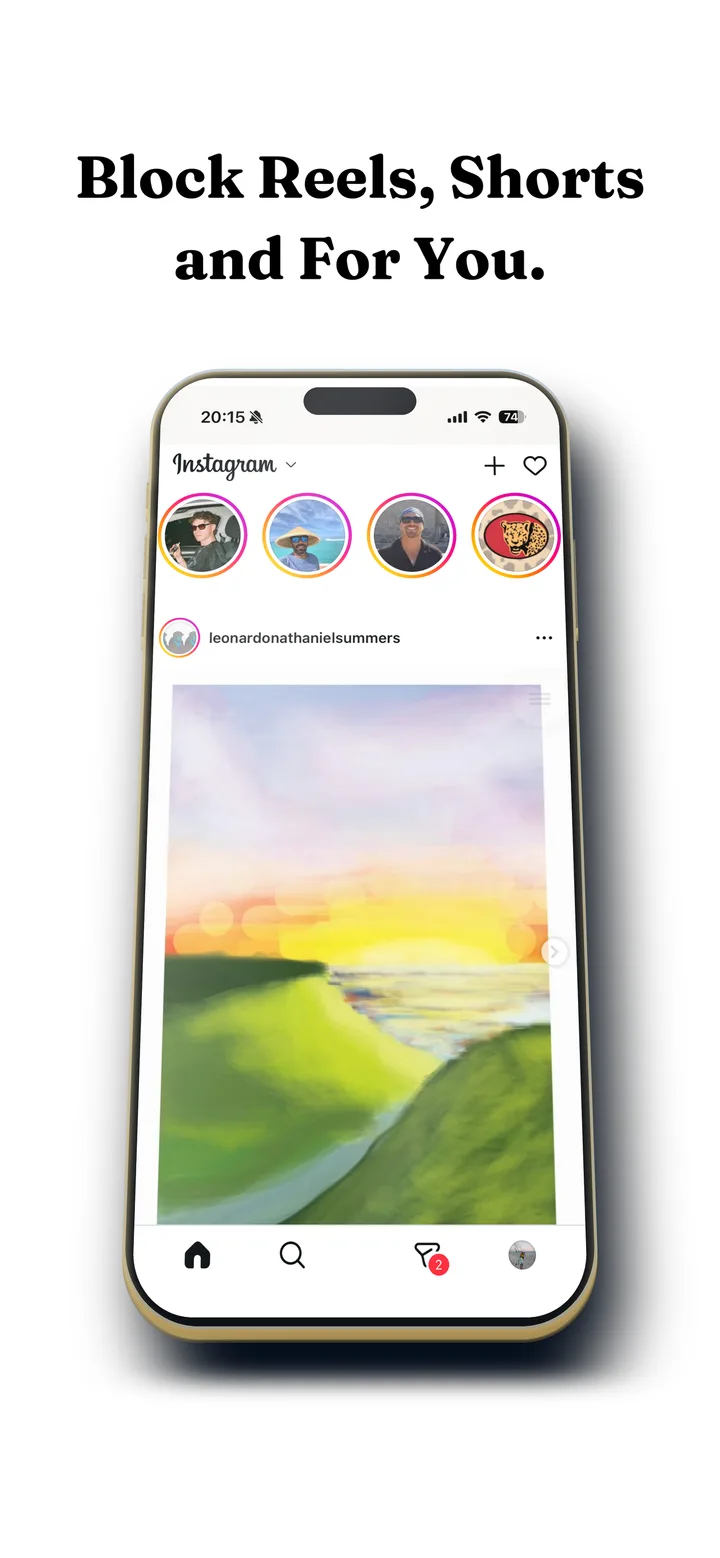
You follow a few hundred people. Your Instagram feed shows a handful of them, then a run of posts from accounts you have never heard of, each labelled "Suggested for you". Scroll for a minute and it is mostly suggestions.
Instagram gives you two ways to push back, and both wear off. Here is how to turn off suggested posts on Instagram, what each method actually does, and the free option that keeps them gone.
What you can expect:
- Snooze: suggested posts gone for 30 days, then back without warning.
- Following feed: only accounts you follow, until you close the app.
- Fluid Friction on iPhone: a following only home feed every time, plus Reels and Explore hidden if you want.
Turn off suggested posts on Instagram for 30 days
Find a suggested post
Scroll your feed until you see a post marked "Suggested for you".
Open the three dots menu and choose Not interested
Tap the three dots at the top right of the post, then Not interested.
Snooze all suggested posts
Instagram then offers to snooze all suggested posts in your feed. Tap it. They stop for 30 days. You can also do it from Settings: open your profile, the menu, then Content preferences, and turn on Snooze suggested posts.
The same menu works on suggested reels. After 30 days the suggestions return, and you have to repeat it. Menus also move between versions, so if the snooze option is missing, check under Settings and Suggested content.
Use the Following feed
Tap the Instagram logo at the top of the home screen and choose Following. You see only accounts you follow, newest first, with no suggestions in between.
It is the cleanest built in view, with one problem: Instagram opens on the regular feed every time. The Following feed is a place you have to remember to go to, and the moment you forget, suggestions are back.
Turn off suggested posts for good on iPhone
Apple does not let one app change another, so the way to make the Following feed stick is to open Instagram's website inside an app that can restyle it.
Install Fluid Friction from the App Store
Get it on the App Store. There is no Fluid Friction account, and the blocking tools are free.
Open Instagram inside Fluid Friction and sign in
Instagram's own login page loads in the in-app browser. Your session stays on your device.
Turn on Following Only
The home feed becomes just the accounts you follow, every time you open it.
Hide the other suggestion surfaces too
Block Explore removes the grid of suggested posts behind search, and Block Reels removes the Reels tab. See how to hide Explore on Instagram and how to block Instagram Reels on iPhone.
On Android: block Reels and slow the feed
On Android, Fluid Friction works inside Instagram's real app, where it can close Reels the moment it opens but cannot reorder the feed. What it adds instead is friction: each swipe drags through on screen fluid, and a bubble has to rise off the screen before the feed moves, so suggested posts stop being free to scroll past. It is free on Google Play.
Why suggested posts keep coming back
The people you follow do not post enough to fill a feed that never ends. Instagram fills the gaps with suggested posts and reels, chosen by what you have watched and lingered on, and the snooze only pauses that for 30 days because the feed is built around it. That is also why the Following feed feels short: it shows what your friends actually posted, and then it stops.
That stop is the feature. A feed that ends turns "check Instagram" into a few minutes instead of an open ended session. Following Only makes that the default every time you open Instagram, rather than a view you have to remember.
What changes after a week
Most people notice two things. Instagram visits get shorter, because there is less to scroll once you have caught up. And posts from friends stop getting lost between suggestions, so you see more of the people you followed for a reason.
If it stops working
If suggested posts come back on iPhone, check that you opened Instagram through Fluid Friction and not the Instagram app, which ignores the setting. Instagram changes its website from time to time, so keep Fluid Friction updated. The snooze returning after 30 days is expected, not a fault.
Which method fits you
| You want | Use |
|---|---|
| A quick break from suggestions | Snooze for 30 days |
| Only people you follow, sometimes | The Following feed from the Instagram logo |
| Only people you follow, every time, on iPhone | Following Only in Fluid Friction |
| No Reels, on Android | Feature Blocking for Instagram Reels |
| Less Instagram overall | Friction, or see how to block Instagram on your phone |
Common questions
Can you turn off suggested posts on Instagram permanently?
Not inside Instagram. The snooze lasts 30 days and the Following feed resets when you reopen the app. On iPhone, Fluid Friction's Following Only makes the home feed just the accounts you follow every time you open Instagram through it.
How do I see only people I follow on Instagram?
Tap the Instagram logo at the top of your home feed and choose Following. It shows only accounts you follow, newest first, until you close the app.
Does this work on iPhone and Android?
Following Only works on iPhone, in Fluid Friction's browser. On Android, Fluid Friction blocks Reels inside the real app and adds friction to the feed, but it cannot hide suggested posts there. Both are free.
Is it safe to use Instagram inside another app?
You sign in on Instagram's own page, so Fluid Friction never sees your password, and your session stays on your device. It does not read your posts or messages.
Why can't I snooze suggested posts on Instagram?
The option has moved between versions. Try the three dots on a suggested post, then Not interested, or open Settings, Content preferences and Snooze suggested posts. If neither shows it, update Instagram. On iPhone, Following Only in Fluid Friction works regardless.
How do I stop seeing posts I don't follow on Instagram?
Switch to the Following feed from the Instagram logo, or snooze suggested posts for 30 days. To make it permanent on iPhone, open Instagram in Fluid Friction and turn on Following Only, which shows only accounts you follow every time.
Will I miss posts from people I follow?
No. Following Only keeps every post from accounts you follow and removes only the suggestions in between, so you are more likely to see your friends' posts, not less.