Block the feed, keep the app
How to Turn Off Suggested Posts on Facebook and See Only Friends
Facebook has no single switch to turn off suggested posts, but there are two ways around it. The Friends feed in Facebook's Feeds tab shows only posts from friends. To turn off suggested posts on Facebook's main feed too, a browser such as Fluid Friction's can hide suggested posts, People You May Know, suggested groups and reels, free.
On this page (6 sections)
You open Facebook to see what your sister posted, and the first six things in your feed are from pages you have never heard of. "Suggested for you" now fills a large part of the main feed, along with reels and People You May Know, and the posts from people you actually know get harder to find.
You can get your friends back. Facebook gives you one real option, and an app can cover the rest. Here is how to turn off suggested posts on Facebook, honestly, including what each method leaves behind.
What you can expect:
- Built in: a separate Friends feed you have to open each time, plus hiding and snoozing one suggestion at a time.
- With Fluid Friction on iPhone: the main feed without suggested posts, People You May Know, suggested groups or reels, keeping friends and Pages you follow.
- On Android: Facebook Reels blocked inside the real app, plus friction on the feed so suggestions stop being free to scroll.
Turn off suggested posts on Facebook with the Friends feed
This is the free, built in method, and it is worth setting up first.
Open the Feeds tab
In the Facebook app, open the menu and tap Feeds. On some versions it sits in the tab bar or under a "Feeds" label at the top of Home.
Choose Friends
The Friends filter shows only posts from people you are friends with, newest first. Groups, Pages and Favorites have their own filters too.
Hide or snooze what still gets through
On any suggested post in the main feed, tap the three dots and choose to hide it or show less like it. You can also snooze a person, Page or group for 30 days.
The catch is that the Friends feed is a place you go to, not where Facebook opens. Every time you launch the app you land on the main feed, suggestions and all. Menus also move between versions, so if Feeds is not where described, search Facebook's settings for it.
Hide suggested posts from the main feed on iPhone
Apple does not let one app change another, so the way to change what Facebook shows on iPhone is to open Facebook's website inside an app that is allowed to restyle it.
Install Fluid Friction from the App Store
Get it on the App Store. There is no Fluid Friction account, and the blocking tools are free.
Open Facebook inside Fluid Friction and sign in
Facebook's own login page loads in the in-app browser. You sign in to Facebook, not to us, and the session stays on your device.
Turn on Block Suggestions
This hides suggested posts, People You May Know, suggested groups and Pages, and the reels row, while posts from friends and Pages you follow stay. It works by matching Facebook's section labels, so it is best effort and may need an update when Facebook changes them.
Add Block Reels and Block Watch if video is the pull
Block Reels hides Reels, and Block Watch removes Facebook's video feed from the navigation. See how to block Facebook Reels for the Reels side in detail.
On Android: block Reels and slow the feed
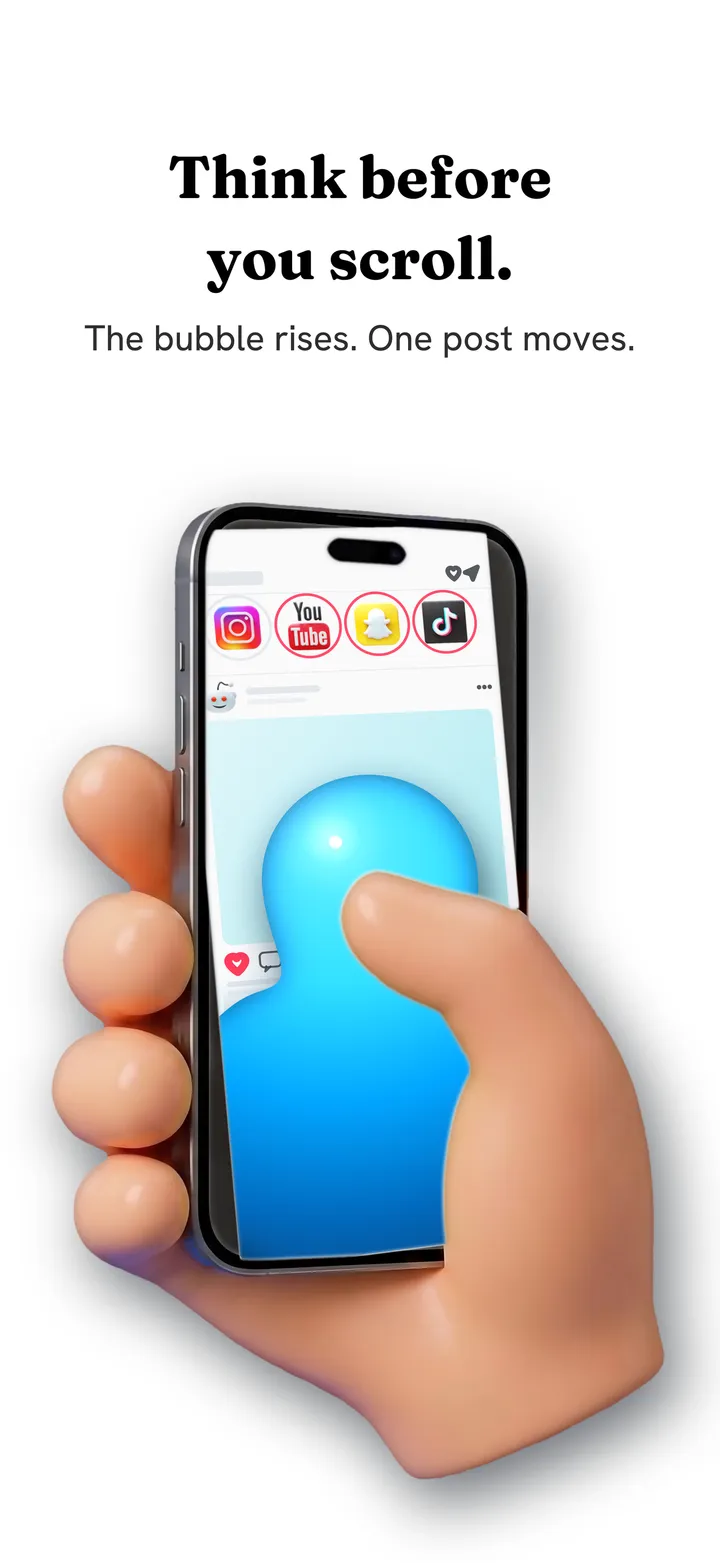
On Android, Fluid Friction works inside Facebook's real app rather than in a browser. It cannot remove suggested posts there, but it can close Facebook Reels the moment it opens and put friction on the feed, so that each swipe drags through on screen fluid and a bubble has to rise off the screen before the feed moves. It is free on Google Play.
Suggestions work because scrolling past them costs nothing. Make every swipe cost a little, and the feed stops being something you drift through. The reasons a hard block alone usually fails are in why app blockers don't work.
Why Facebook fills your feed with suggestions
Your friends do not post enough to fill an endless feed, so Facebook fills the gaps with posts it predicts you will engage with: suggested pages, groups, reels and people you may know. The less your friends post, the more of your feed is suggestions. That is why the Friends feed can feel almost empty, and why that emptiness is useful: when you have seen what your friends shared, you are done. Instagram works the same way, covered in how to turn off suggested posts on Instagram.
Which method fits you
| You want | Use |
|---|---|
| Friends' posts only, free, no app | The Friends feed in Feeds |
| Fewer suggestions over time | Hide and snooze from the three dots menu |
| The main feed without suggestions, on iPhone | Block Suggestions in Fluid Friction |
| No Reels, on Android | Feature Blocking for Facebook Reels |
| Less time on Facebook overall | Friction on the feed, or a schedule |
Common questions
Can you turn off suggested posts on Facebook permanently?
Not with one setting. Hiding and snoozing are temporary or one post at a time. The Friends feed shows only friends but is not the default view. On iPhone, Fluid Friction's Block Suggestions hides them from the main feed whenever you open Facebook through it.
How do I only see friends on Facebook?
Open the Feeds tab and choose Friends. It shows posts from people you are friends with, newest first. Facebook still opens on the main feed, so you have to switch each time, unless you use a browser that hides suggestions.
Does this work on iPhone and Android?
On iPhone, Fluid Friction can hide suggested posts in its browser. On Android it blocks Facebook Reels inside the real app and adds friction to the feed, but it does not remove suggested posts there. Both are free.
Is it safe to use Facebook inside another app?
You sign in on Facebook's own page, so Fluid Friction never sees your password, and the session stays on your device. It does not read your posts or messages.
Will hiding suggestions affect my groups or Marketplace?
No. Block Suggestions only hides suggested content in the feed. Your groups, Marketplace, events and messages work as normal.