Block the feed, keep the app
How to Hide the Explore Page on Instagram and Keep Search
Instagram has no setting to hide the Explore page, so tapping search always shows a grid of suggested posts and reels first. To hide Explore on Instagram on iPhone, open Instagram in Fluid Friction's browser and turn on Block Explore, which keeps search and removes the grid. On Android, block Reels and add friction instead. It is free.
On this page (8 sections)
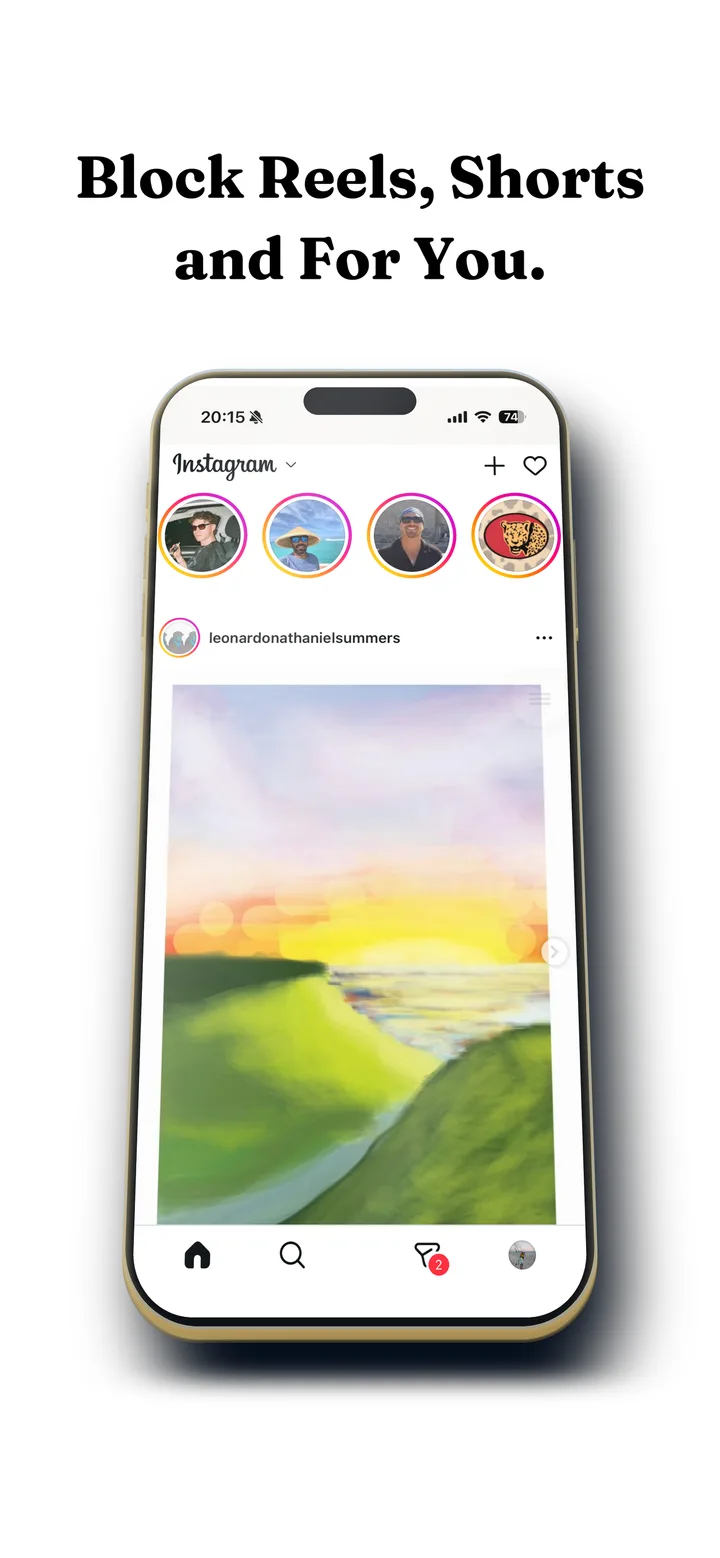
You tap the search icon to look up a friend's account. Before you can type, Instagram shows you a full screen grid of posts and reels chosen to catch your eye, and ten minutes later you have still not searched for anything.
That grid is Explore, sometimes labelled Discover, and it is built into search on purpose. Here is how to hide Explore on Instagram so search is just search again.
What changes on iPhone with Block Explore:
- Stays: search for accounts, hashtags and places, and every profile you open.
- Goes: the grid of suggested posts and reels you see before you type.
- Optional: Block Reels and Following Only, to take the other suggestion surfaces out too.
Hide Explore on Instagram on iPhone
Apple does not let one app change another, so the way to change Instagram's search screen is to open Instagram's website inside an app that can restyle it.
Install Fluid Friction from the App Store
Get it on the App Store. There is no Fluid Friction account, and the blocking tools are free.
Open Instagram inside Fluid Friction and sign in
Instagram's own login page loads in the in-app browser. Your session stays on your device.
Turn on Block Explore
Search keeps working and the Explore grid is hidden. Tapping the search icon now opens straight to the search box, with nothing to browse before you type.
Take out the other suggestion surfaces
Block Reels removes the Reels tab, and Following Only makes the home feed just the accounts you follow. See how to turn off suggested posts on Instagram and how to block Instagram Reels on iPhone.
On Android: block Reels and slow the grid
On Android, Fluid Friction works inside Instagram's real app. It cannot hide the Explore grid there, but it can close Reels the moment one opens from Explore and put friction on scrolling, so the grid stops being free to browse. Each swipe drags through on screen fluid, and a bubble has to rise off the screen before anything moves. It is free on Google Play.
What Instagram itself lets you do
- Not interested. Long press a post in Explore and choose Not interested. It changes what appears, not whether the grid appears.
- Sensitive content control. Under Settings and Suggested content, you can see less of some kinds of content. Again, the grid stays.
- Search from the home feed. There is no other way into search on the app, so you cannot avoid the grid by going around it.
Explore matters more than it looks. It is where a single search turns into twenty minutes, often by way of a reel. If you also want the messages without the rest, see Instagram DMs only.
A search first Instagram, step by step
Hiding Explore works best as part of a small setup that turns Instagram back into a tool you open for a reason. On iPhone, in Fluid Friction's browser:
- Block Explore, so search is just a search box.
- Following Only, so the home feed is only the accounts you follow and runs out.
- Block Reels, so a reel only plays when someone sends it to you.
- A schedule, gentle in the day and stricter after 10pm, when browsing tends to start without a reason.
With those four switches, opening Instagram to look someone up takes seconds, and there is nothing waiting to turn it into twenty minutes. On Android, the closest equivalent is Feature Blocking for Reels plus friction on scrolling, which leaves the grid visible but makes browsing it slow and deliberate.
What changes after a week
The first few days, your thumb still reaches for the grid out of habit and finds an empty search screen. That moment is the point: it shows how often you opened search without anything to search for. After a week, most people notice that Instagram visits get shorter rather than rarer, because the visits that remain are the ones with a purpose.
If it stops working
If the Explore grid shows up again, make sure you opened Instagram through Fluid Friction rather than the Instagram app, which always shows it. When Instagram redesigns its website, a switch can need an app update before it works again, so keep Fluid Friction updated. On Android, if Reels opens from Explore, check that Feature Blocking for Instagram Reels is still on after any phone update.
Which setup fits you
| You want | Use |
|---|---|
| Search without the grid, on iPhone | Block Explore in Fluid Friction |
| No suggested posts in the feed | Following Only |
| No Reels anywhere | Block Reels on iPhone, Feature Blocking on Android |
| Messages only | DMs Only on iPhone |
| Less browsing on Android | Friction on Instagram |
Common questions
Can you turn off the Explore page on Instagram?
Not in Instagram's own settings, because Explore is built into the search tab. On iPhone, Fluid Friction's Block Explore hides the grid and keeps search working, inside its browser.
Will I still be able to search on Instagram?
Yes. Block Explore removes only the grid of suggested posts and reels. Searching for accounts, hashtags and places works as normal.
Does this work on iPhone and Android?
Hiding Explore works on iPhone, in Fluid Friction's browser. On Android, Fluid Friction blocks Reels inside Instagram's real app and adds friction to scrolling, but cannot hide the grid. Both are free.
Is it safe to use Instagram inside another app?
You sign in on Instagram's own page, so Fluid Friction never sees your password, and your session stays on your device. It does not read your posts or messages.
Why is my Instagram Explore page all reels?
Explore favours reels because they keep people watching longer. Marking them Not interested changes the mix slowly. Hiding Explore in Fluid Friction on iPhone, or blocking Reels on Android, removes the pull instead.
Why is the Explore page so hard to stop scrolling?
It is a grid of posts picked to catch your attention, sitting where you go to search, so you meet it when you were not planning to browse. Removing it from search is often enough to stop the habit.